

Handing Your Kid Your Phone? Turn This Setting On First
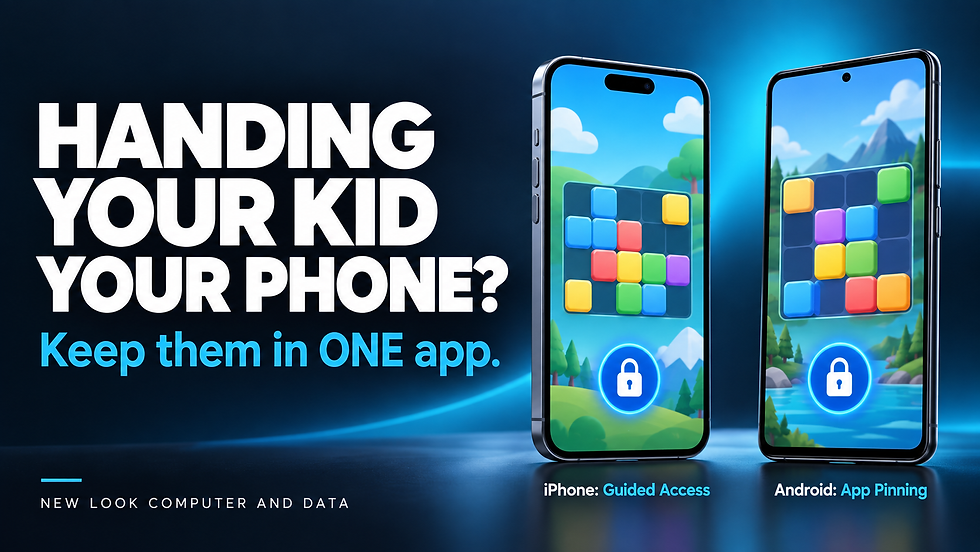
You hand your child your phone to play a game or watch a video. A few minutes later, they have somehow made their way into your photos, opened your messages, or started tapping through things you never intended them to use.
For parents and grandparents, that situation probably sounds familiar.
Before you hand over your phone next time, take a moment to set up a feature that keeps it in one app. On iPhone, it is called Guided Access. On Android, it is usually called App Pinning or Screen Pinning.
Here is how to get started and what to check before using it.
Why Keep Your Phone in One App?
Our phones hold a lot more than games and videos. We use them for family conversations, work emails, personal photos, shopping, and managing everyday responsibilities.
When someone only needs one app, giving them access to the whole phone is often unnecessary.
Think about a child playing a puzzle game while you wait for an appointment. You want them to enjoy the puzzle without accidentally wandering into something else. The same idea can be useful when someone borrows your phone to use a particular app.
The goal is simple: choose what they can use, activate the restriction, and unlock it yourself when they are finished.
How to Set Up Guided Access on iPhone
Open Settings → Accessibility → Guided Access.
Turn it on.
Under Passcode Settings, create a code your child does not know.
To use it, open the desired app and triple click the side button, or Home button on older models. Select Guided Access if prompted, then tap Start. Previously configured apps may start immediately.
How to Exit Guided Access
On current software, triple click the button, authenticate, and tap End. Apple specifies a double click for iOS 18 or earlier.
Additional Options
Under Session Settings or Options, you can restrict touch, disable volume buttons, or set a time limit. Disabling touch can be useful when a child watches a video and keeps accidentally pausing it.
Apple notes that emergency calling and Crash Detection are unavailable during Guided Access. End the session to use those features.
How to Set Up App Pinning on Samsung Galaxy
On supported Samsung phones:
Open Settings.
Select Security and privacy.
Choose More security settings.
Turn on Allow apps to be pinned.
Next, open the app you want to share and bring up Recent apps. Tap the app icon above its preview, then select Pin this app.
Menu wording can vary with the phone and software version.
How to Find App Pinning on Other Android Phones
Search your phone’s Settings for App pinning or Screen pinning. It is generally within the security settings.
After enabling it, open the app, bring up the recent apps overview, tap the icon above the app preview, and choose Pin.
Check that leaving the pinned app requires your PIN, pattern, or password. If your device offers a separate switch for that requirement, enable it.
How to Exit App Pinning
The method depends on your navigation setup:
• Gesture navigation: Swipe up and hold.• Three button navigation: Hold Back and Recent apps together.• Older two button navigation: Hold Back and Home together.
Enter your unlock credentials when prompted. Follow any device specific instructions displayed when you activate pinning.
Test It Before Handing Over Your Phone
Do a quick practice run yourself. Activate the feature, try to leave the app, then go through the steps to unlock it.
This helps you confirm that the restriction is working and that you know how to end it. On Android, it also gives you a chance to verify that unpinning really does require authentication.
Avoid demonstrating the unlock code where your child can easily watch it. If they already know the code used to exit, the restriction will be much less useful.
Keeping Them in an App Does Not Make Everything Inside It Appropriate
Choose the app carefully. A video service, browser, or game may still offer content and features you do not want your child using.
Keeping a child inside a video app, for example, does not mean they can only watch the particular video you selected. Likewise, keeping them in a game should not be treated as a guarantee against purchases or communication features.
Review the app’s own settings and purchase controls separately. Use these phone features as a practical tool for a short handoff, alongside supervision.
A Simple Habit That Makes Sharing Your Phone Easier
Once you have practiced the process, make it part of your routine: open the app, activate the restriction, and then hand over the phone.
It is a small step that gives you more control over how someone uses your device.
Watch our video walkthrough to see the process in action, and share this guide with a parent or grandparent who is always hearing, “Can I use your phone?”
Need help with your technology? Contact New Look Computer and Data in St. Johns, Michigan. Follow us for practical tech tips that make everyday technology easier to use.


Comments